Introducing the vendor portal
Vendors can now add their own bank details, contacts, and tax info in Dash.fi, and see when you'll pay them. You review each change before it goes on your vendor record.
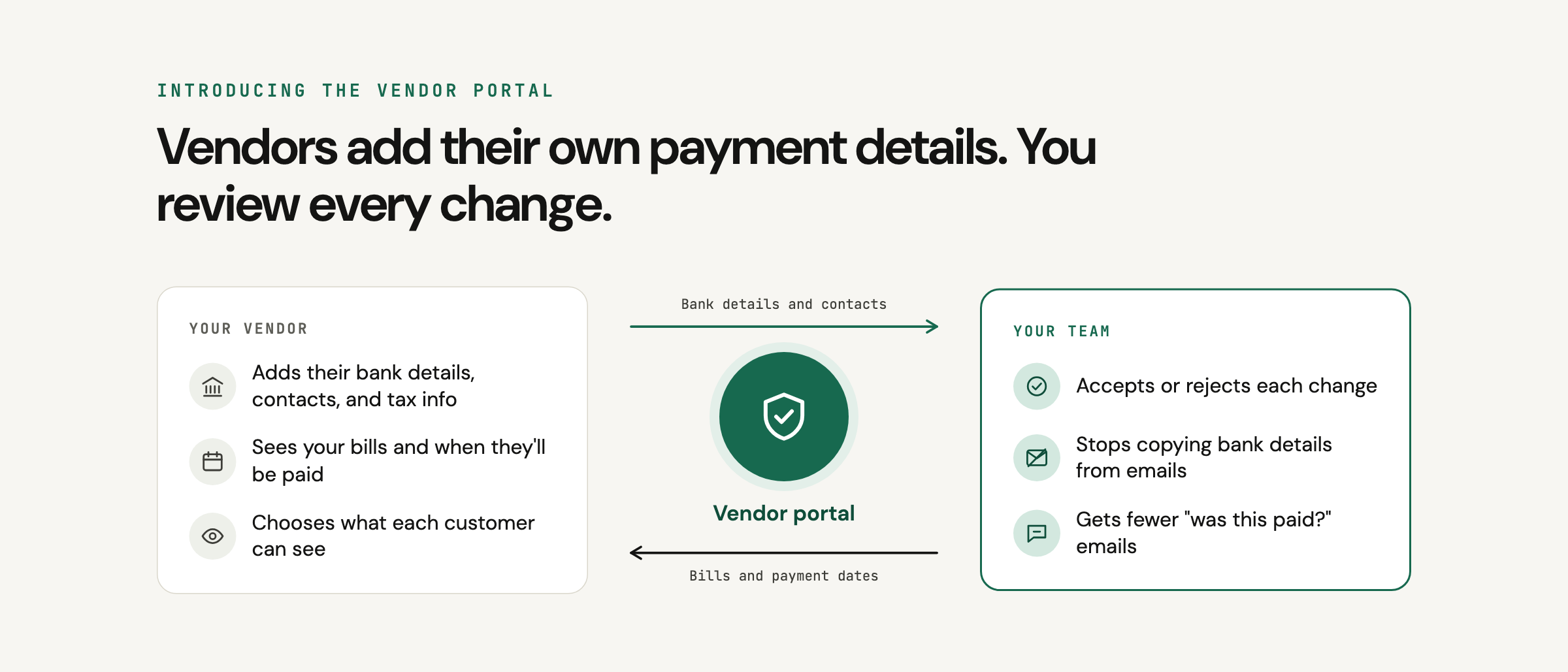
Today we're introducing the Dash.fi vendor portal. Your vendors sign in to it to add their own bank details, contacts, and tax info, and you review each one before it's added to your vendor record.
Your team stops copying bank details out of emails, and gets fewer "was this paid?" messages. Your vendors get one place to update their details and check when you'll pay them.
Why we built it
One of the most common ways companies lose money in accounts payable starts with an email. A vendor says they've changed banks and sends new details. Sometimes it's real. Sometimes it's from someone who has broken into the vendor's email. Either way, someone on your team copies the new routing number into your payment system.
With the vendor portal, vendors enter their bank details themselves, from their own login, instead of sending them by email.
Invite a vendor
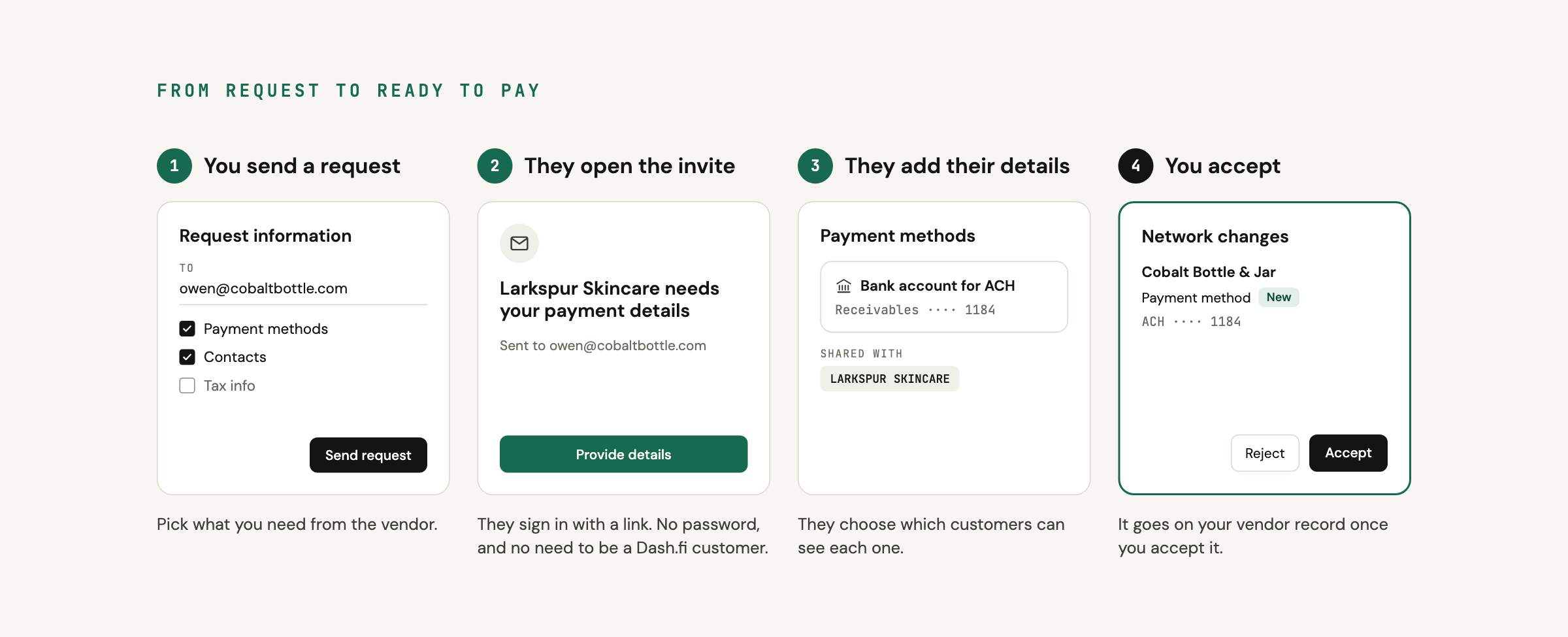
- Open the vendor in Dash.fi and choose Request information.
- Enter the vendor's email under To, and add a message if you like.
- Tick what you need: Payment methods, Contacts, Tax info, or all three.
- Choose Send request.
Your vendor gets an email, signs in with a link, and sets up their portal in a few minutes. They don't need a password, and they don't need to be a Dash.fi customer.
Review every change
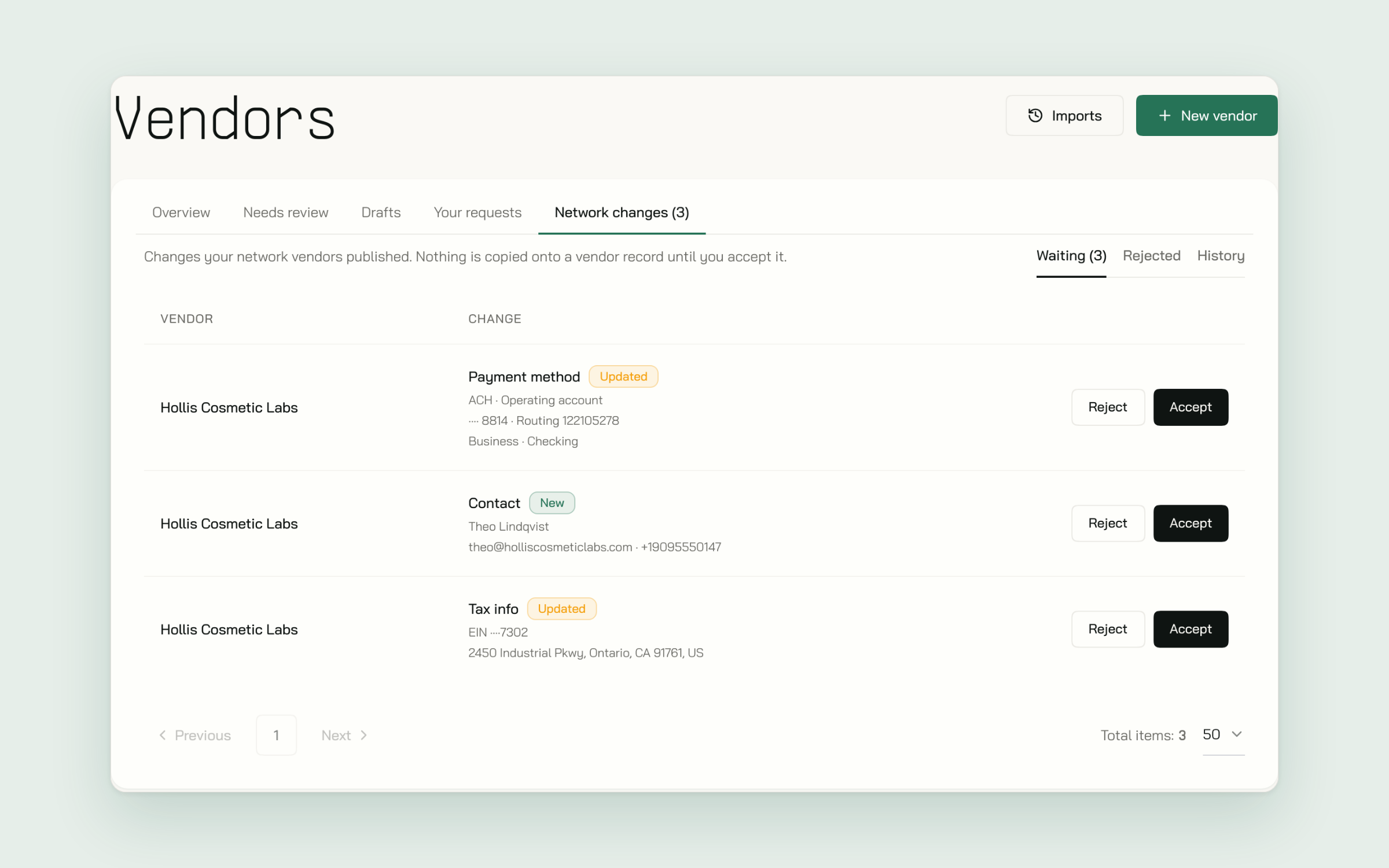
When a vendor adds a bank account, updates a contact, or adds tax info, it shows up in Vendors > Network changes. You see what changed and choose Accept or Reject. Until you accept, your vendor record keeps the old details. The History tab lists every decision.
Details that come from a vendor show a Managed by vendor badge. Your team can't edit them by hand, so any change has to come from the vendor.
Vendors see when they'll be paid
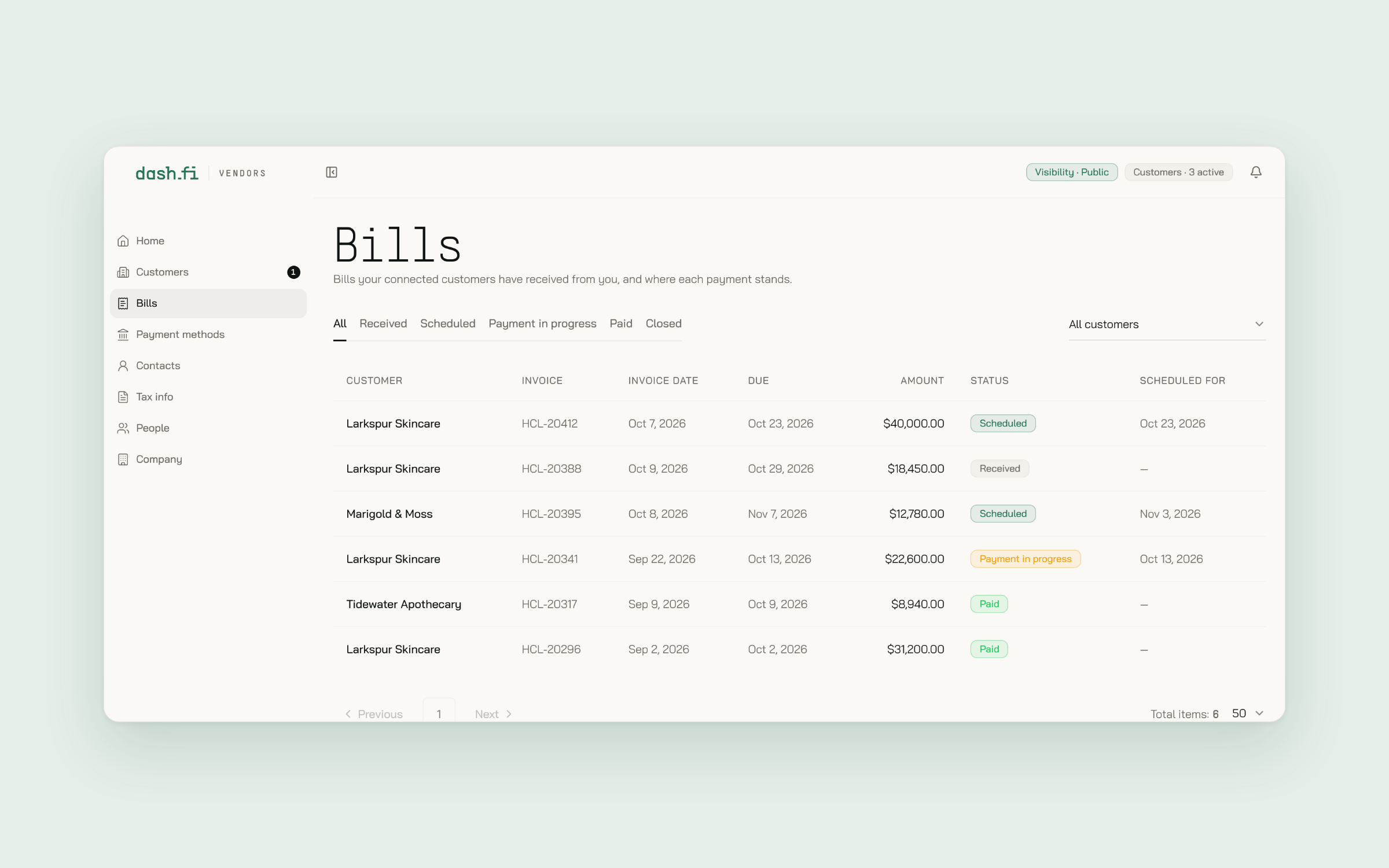
Once you submit a bill, it appears in the vendor's portal with the amount, the due date, and the scheduled payment date. They get a notification when a payment is scheduled and again when it's sent. If they have a question, they can comment on the bill, and you reply from the bill's Shared with vendor tab.
Vendors choose what they share
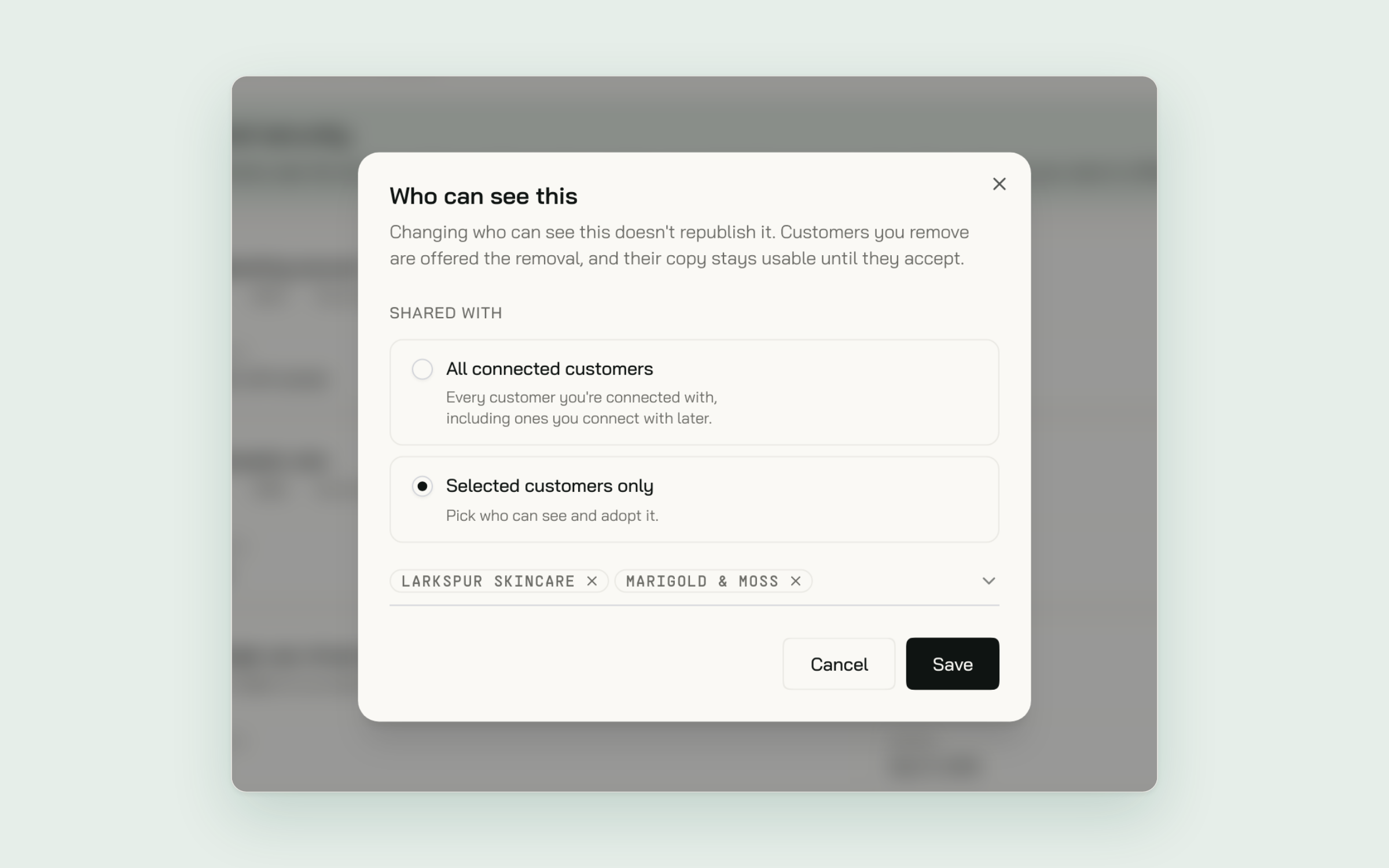
Vendors set up their details once and connect with each customer separately. For each bank account and contact, they choose which customers can see it. Tax info is only shared when you ask for it and they agree. You only ever see the last four digits of an account number. Either of you can disconnect, and you keep any details you've already accepted.
One supplier, start to finish
You add a new supplier and request their payment details. They set up their portal that afternoon and add a bank account. You accept it in Network changes, enter their first bill, and schedule it. The supplier sees the payment date in their portal and gets a notification when it's sent, so they don't need to email your AP team to ask. Six months later they switch banks. The new account shows up in Network changes, you confirm it with your usual contact there, and accept it.
Get started
Open any vendor in Dash.fi and choose Request information. Administrators and Bookkeepers can accept or reject changes. Read more on the vendor portal page.
Invited by a customer? The vendor portal guide walks you through setup.
New to Dash.fi? Get started here or book a demo with one of our product experts.