Pay in 60: pay your suppliers today, repay us in 60 days
Pay a supplier invoice through Dash.fi and turn on Pay in 60. Your supplier is paid now, in full, and you repay 60 days later, after the stock has sold.
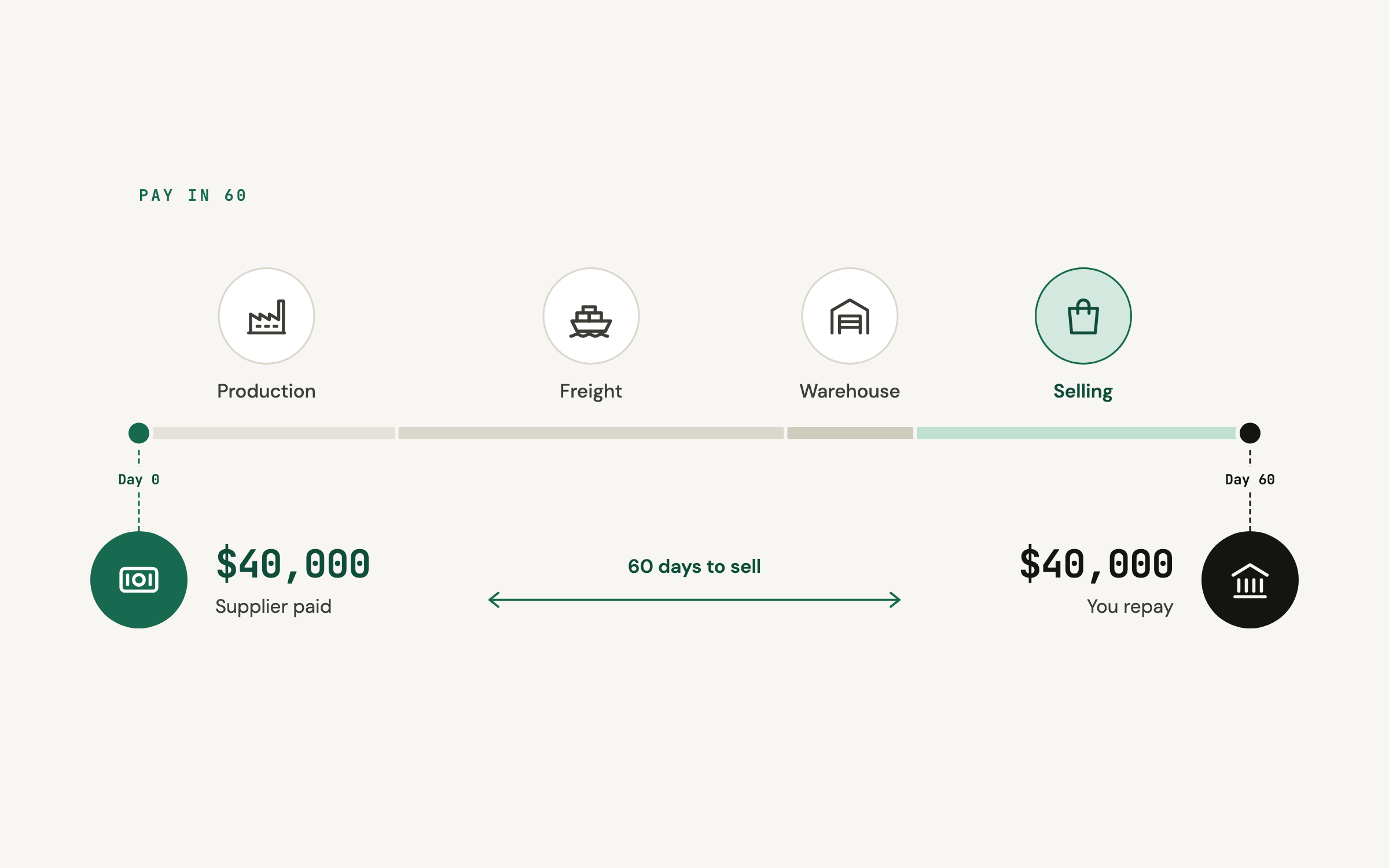
If you sell physical products, you pay for stock long before it pays you back. The manufacturer invoices for the production run, often before anything ships. Then the goods spend weeks in freight, a few more in the warehouse, and only start turning into revenue once they're live and selling.
For a big order, that can mean choosing between paying the supplier and keeping enough in the bank for ads and payroll.
How it works
Pay your supplier's invoice through Dash.fi Bill Pay and turn on Pay in 60. We pay the supplier the full invoice amount on the payment date. You pay the fee the next business day, and the invoice amount comes out of your bank account 60 days later.
Your supplier receives a normal payment and the usual remittance email.
One inventory order, start to finish
You run a skincare brand and you're stocking up for the holiday season. Your manufacturer sends a $40,000 invoice for the next production run and wants paying before it ships. You upload the invoice to Dash.fi, turn on Pay in 60, and see the fee and repayment date before you submit.
The manufacturer is paid in full on the date you picked and ships the order. The stock arrives, goes live, and sells through November. The $40,000 comes out of your bank account 60 days after the manufacturer was paid, by which point the order has been on sale for weeks. You didn't need a loan to cover the gap, or to hold back the next order until cash recovered.
Turn it on
Pay in 60 is part of Bill Pay, so start there. If Bill Pay isn't on yet, a Company Administrator can switch it on under Company > Products.
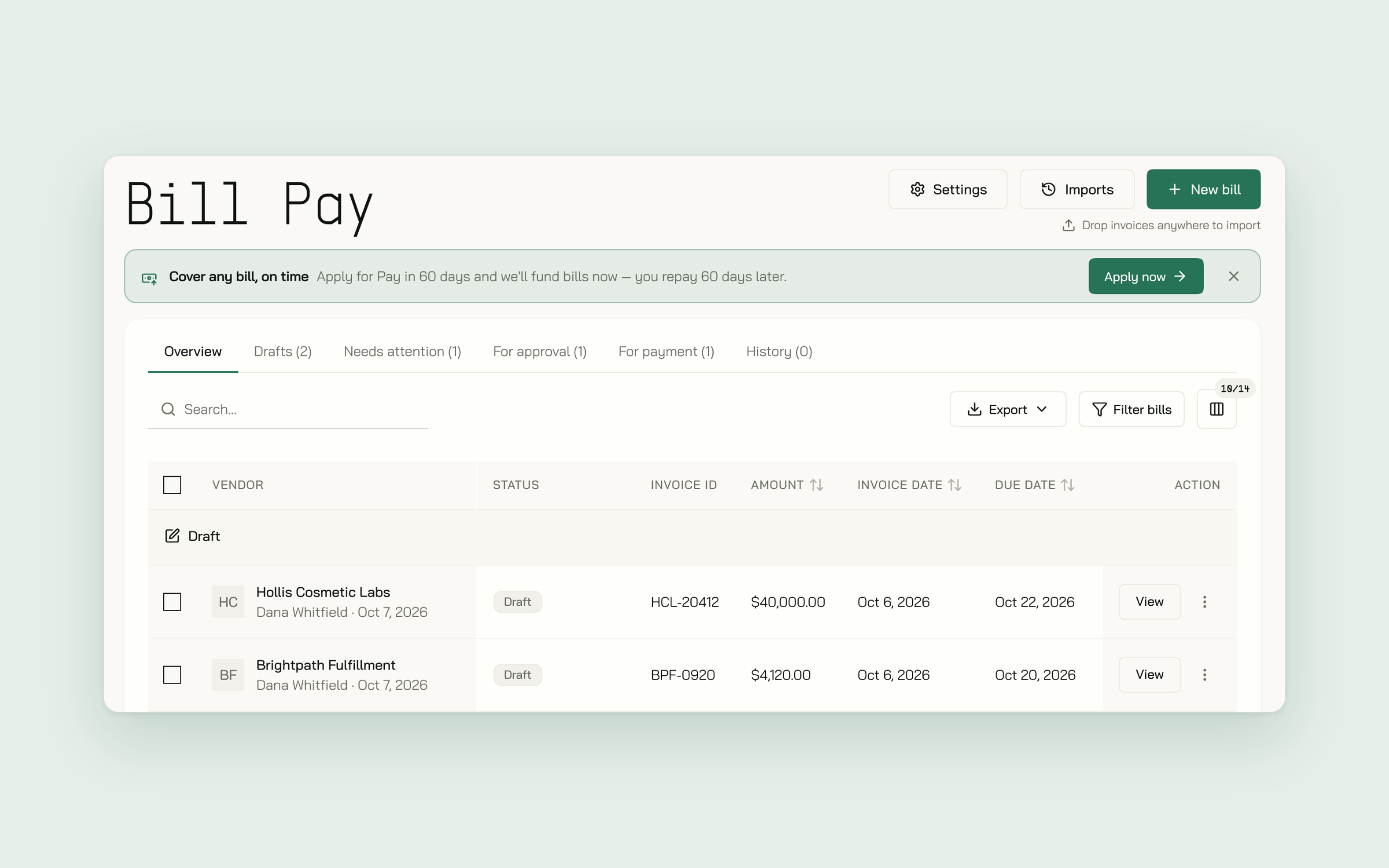
- Apply. Open Bill Pay and choose Apply now on the Pay later banner, or Apply on the Pay later row of any bill's payment step.
- Confirm. There's no form to fill in. The next screen sets out the terms, and choosing Apply now again submits your application.
- Wait for a decision. You'll usually hear back within a day, and we may ask for supporting documents. While it's under review, the Pay later row on your bills shows Pending.
Once you're approved, the row becomes Pay in 60 days and appears on every eligible bill.
Pay a bill with Pay in 60
- Create the bill. Drop the supplier's invoice onto the Bill Pay page and we read it into a draft. Check the vendor, the line items, and the total.
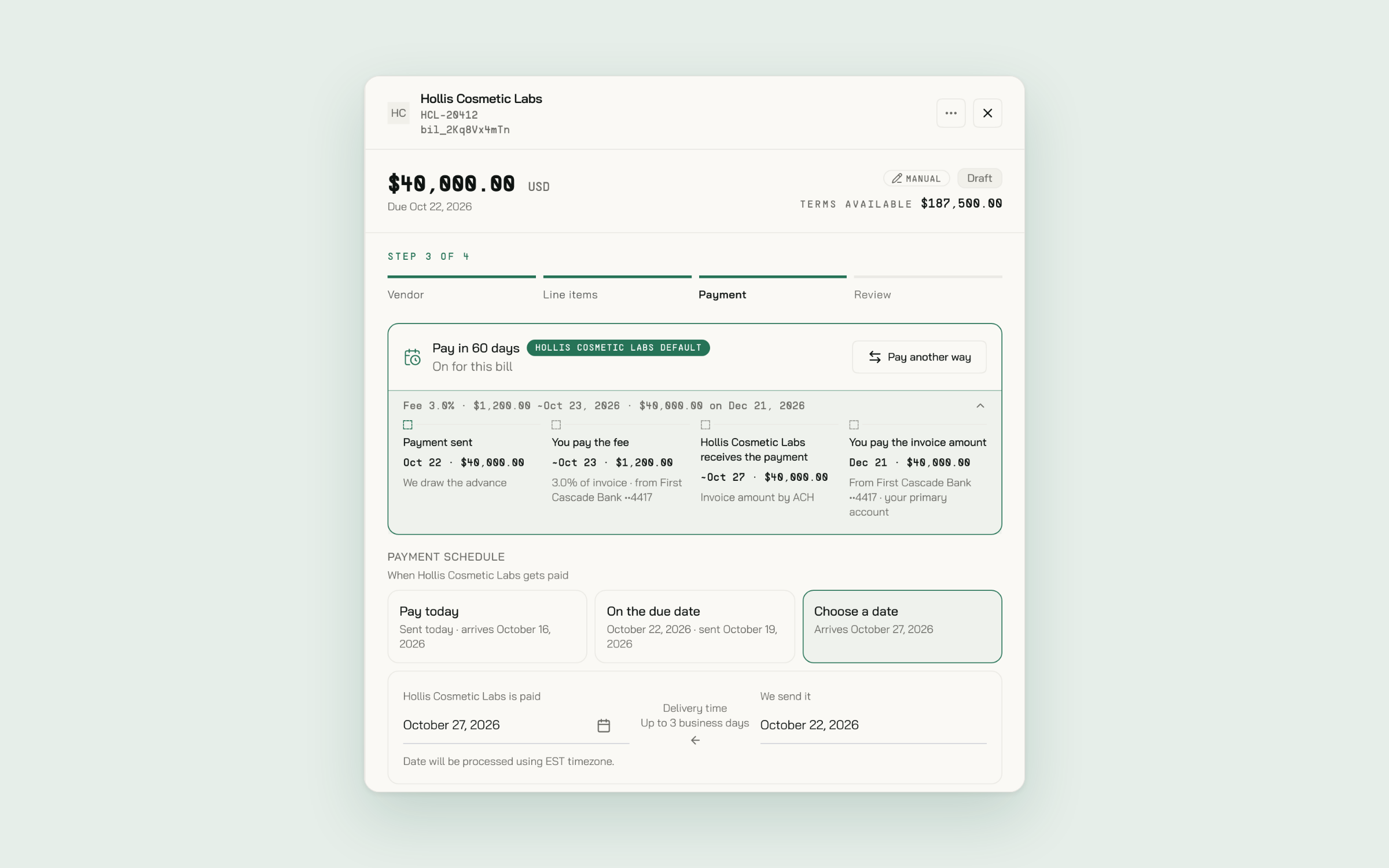
- Go to the payment step. Pay in 60 days sits at the top, above the payment methods.
- Switch it on. We select Bank account for you, because Pay in 60 pays the supplier's bank account by ACH or domestic wire. Pick which of the supplier's accounts to pay.
- Pick the payment date. Choose the due date, today, or a custom date. That's the day your supplier is paid.
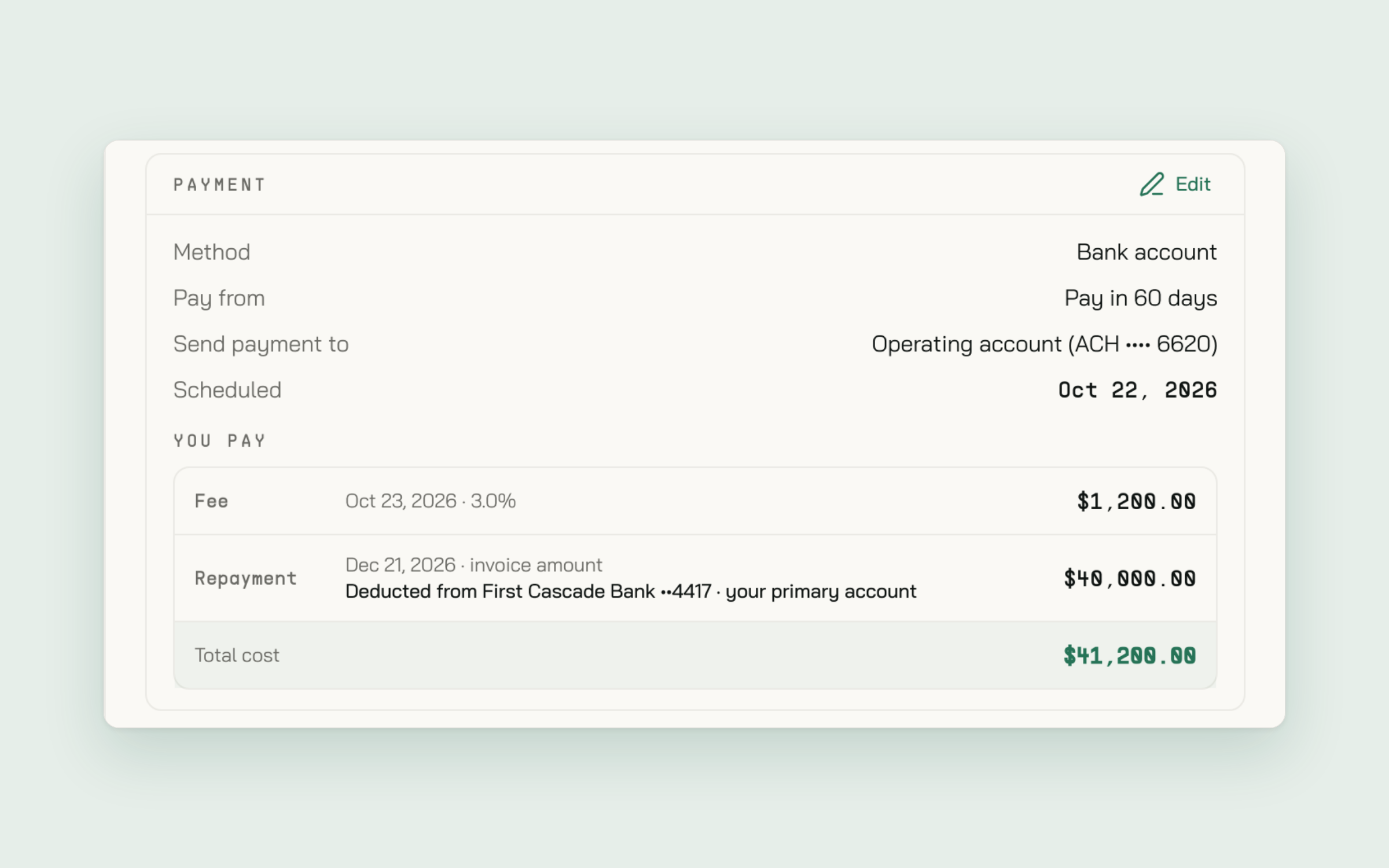
- Check the cost. Open How Pay in 60 days works to see each date and amount, then review the fee, the repayment, and the total cost on the review step.
- Submit. The bill goes through your normal approvals, then we pay the supplier on the date you picked.
To turn it off for a bill before you submit, choose Pay another way.
You see the cost before you commit
The fee and the repayment date are on the bill before you confirm. The timeline shows every step with real dates: when the supplier is paid, when the fee is charged, and when the repayment is taken and from which account. The review step shows the fee, the repayment, and the total cost together.
The fee is added on top of the bill, so your supplier always receives the full amount. After you submit, the same dates appear in the bill's activity timeline.
Make it the default
If you pay the same supplier regularly, make Pay in 60 the default instead of switching it on each time.
- For one supplier. With Pay in 60 switched on, tick Use Pay in 60 days for all that supplier's bills, just below it. When you submit, their future bills start with it switched on.
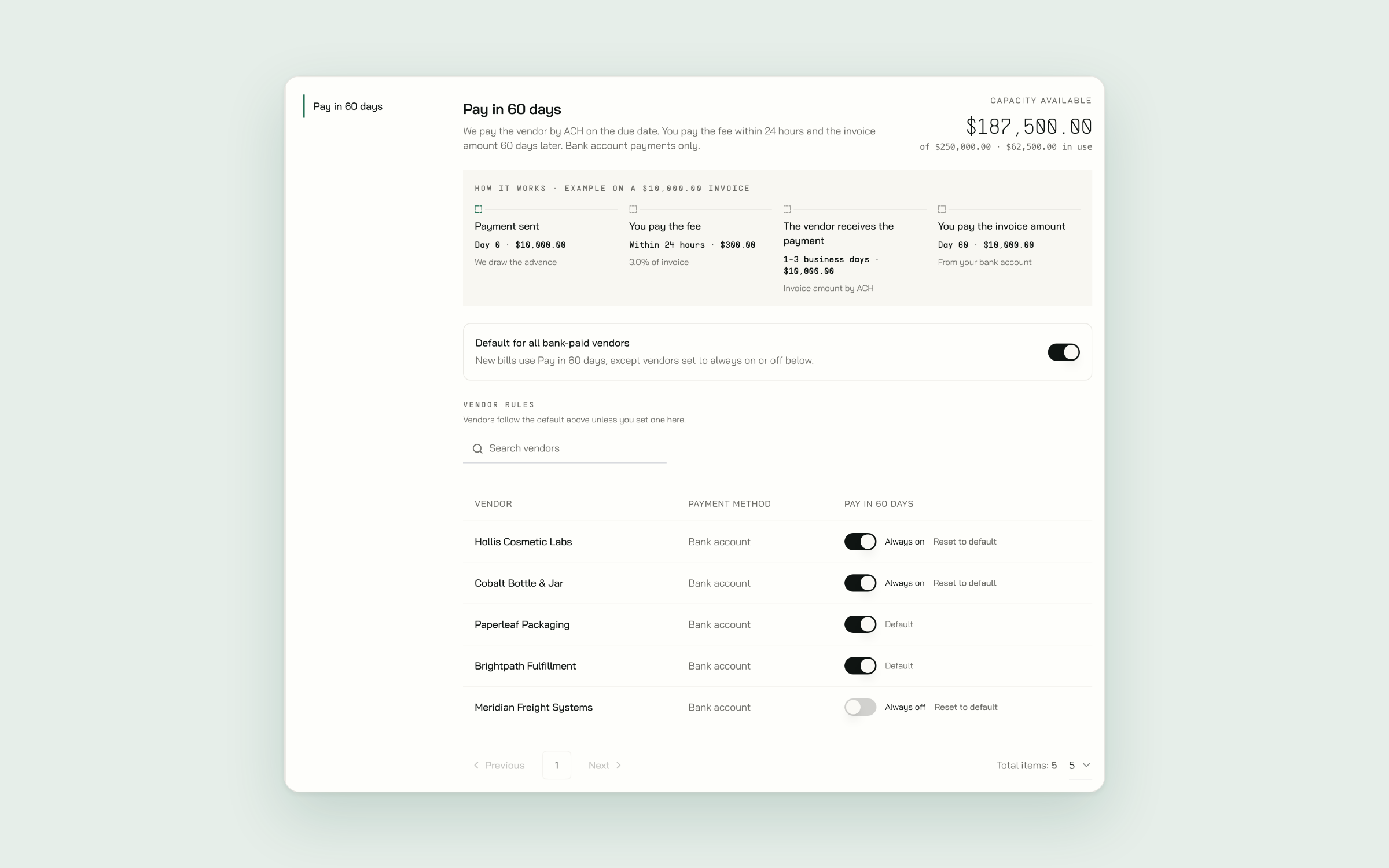
- For everyone. Go to Bill Pay > Settings > Pay in 60 days and turn on Default for all bank-paid vendors.
- With exceptions. On the same settings page, set individual vendors to always on or always off. Those rules win over the default.
You can still switch it off on any single bill before you submit.
When cash is tight
If the account you're paying from can't cover a bill, the warning on the payment step offers Pay in 60 instead. Choosing it switches Pay in 60 on for that bill.
Built-in checks
Pay in 60 bills go through the same approval rules as every other payment. We also review each supplier bank account before paying it with Pay in 60. If an account can't receive Pay in 60 payments, the bill says so before you submit, and you can pay that supplier from your own account instead.
Get started
Open Bill Pay and choose Apply now on the Pay later banner. Once you're approved, try it on your next inventory order. Read more on the Bill Pay page, or see the payment options guide.
New to Dash.fi? Get started here or book a demo with one of our product experts.