Take Dash.fi with you: our new Chrome extension
Dash.fi Card Assistant is free and works on any checkout. It suggests the right card for the site, copies each detail in a click, and tells you whether the payment went through.
Paying a vendor online used to mean a detour. Open the dashboard, find the right card, reveal it, copy the number, switch back, then do it again for the expiry and the security code. Dash.fi Card Assistant keeps your cards in a panel beside the page, so you never leave the checkout.
Your cards, beside the checkout
Click the Dash.fi icon and your cards open in a side panel next to the site you're paying. Search them by name, and see what's available against each card's limit before you pay.
The right card for the site
Open the panel on a checkout and it recognizes the merchant. If you already have a card for that site, it goes to the top. Want a different one? Pick any card from the list.
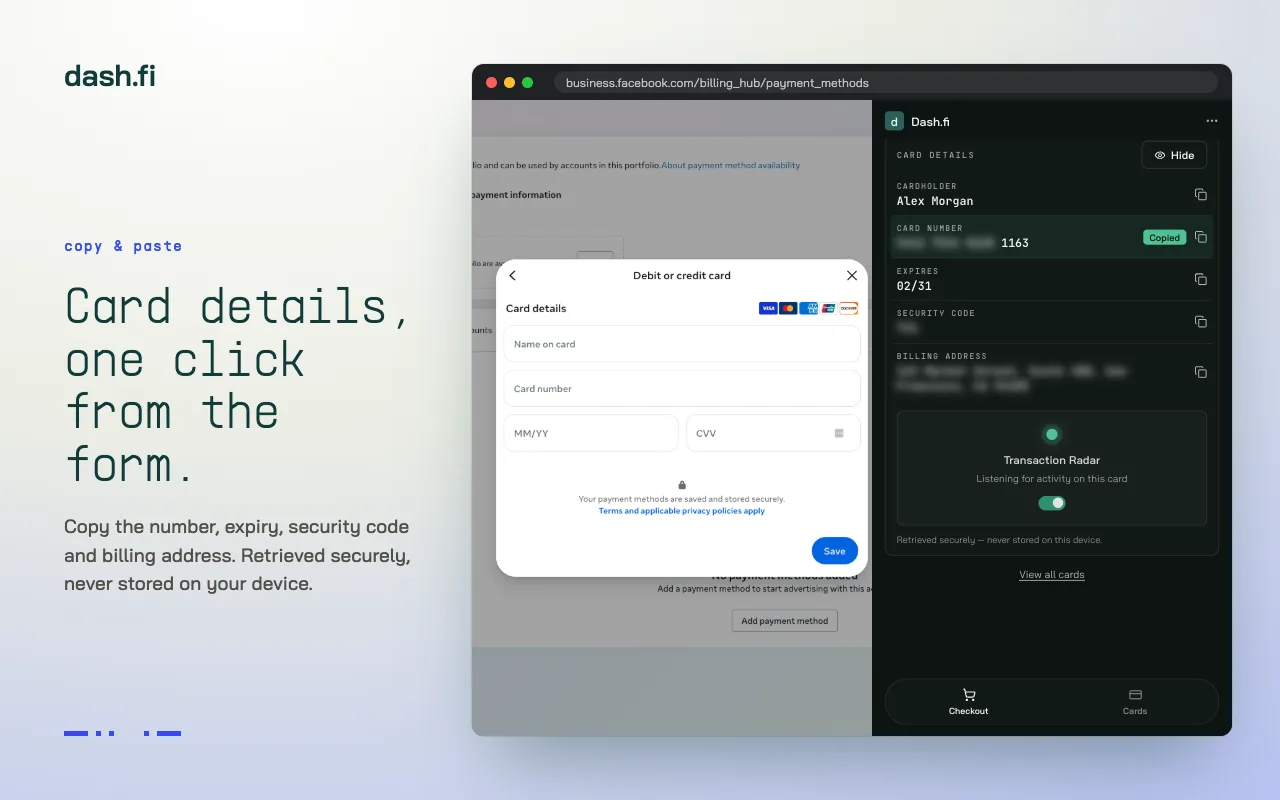
Every detail, one click each
Card number, expiry, security code, and billing address each get their own copy button. Copy, paste into the field, move to the next.
Know whether it went through
Transaction Radar listens for activity on the card you just used. When the payment lands, the panel shows Payment approved or Payment declined. If it's declined, you get a next step, not a dead end:
- The card is frozen. Unfreeze it from the panel and try again.
- The payment needs another attempt. Try it once more.
- The card needs replacing. Do that in the Dash.fi web app.
- Anything else. Contact support to get it resolved.
A new card, on the spot
No card for this vendor yet? Request one from a template without leaving the page. It goes through the same approval rules as a request in Dash.fi.
Your cards, on your terms
- Same sign-in as Dash.fi. Sign in with the account you already use.
- Only your cards. You see the cards your role gives you, and nothing more.
- Details on request. Card numbers stay hidden until you reveal or copy them.
Get started
- Add Dash.fi Card Assistant from the Chrome Web Store. It's free.
- Pin it to your toolbar.
- Sign in with your Dash.fi account, and open it on your next checkout.
It works in Google Chrome today. You can read more on the browser extension page.